How to drop sketches from your computer to Meta Quest: a step-by-step Sketchar guide
Continuing the topic of transferring images to VR: we explain how to upload sketches from your computer to the Sketchar app on Meta Quest via the browser and use them to paint murals on walls.
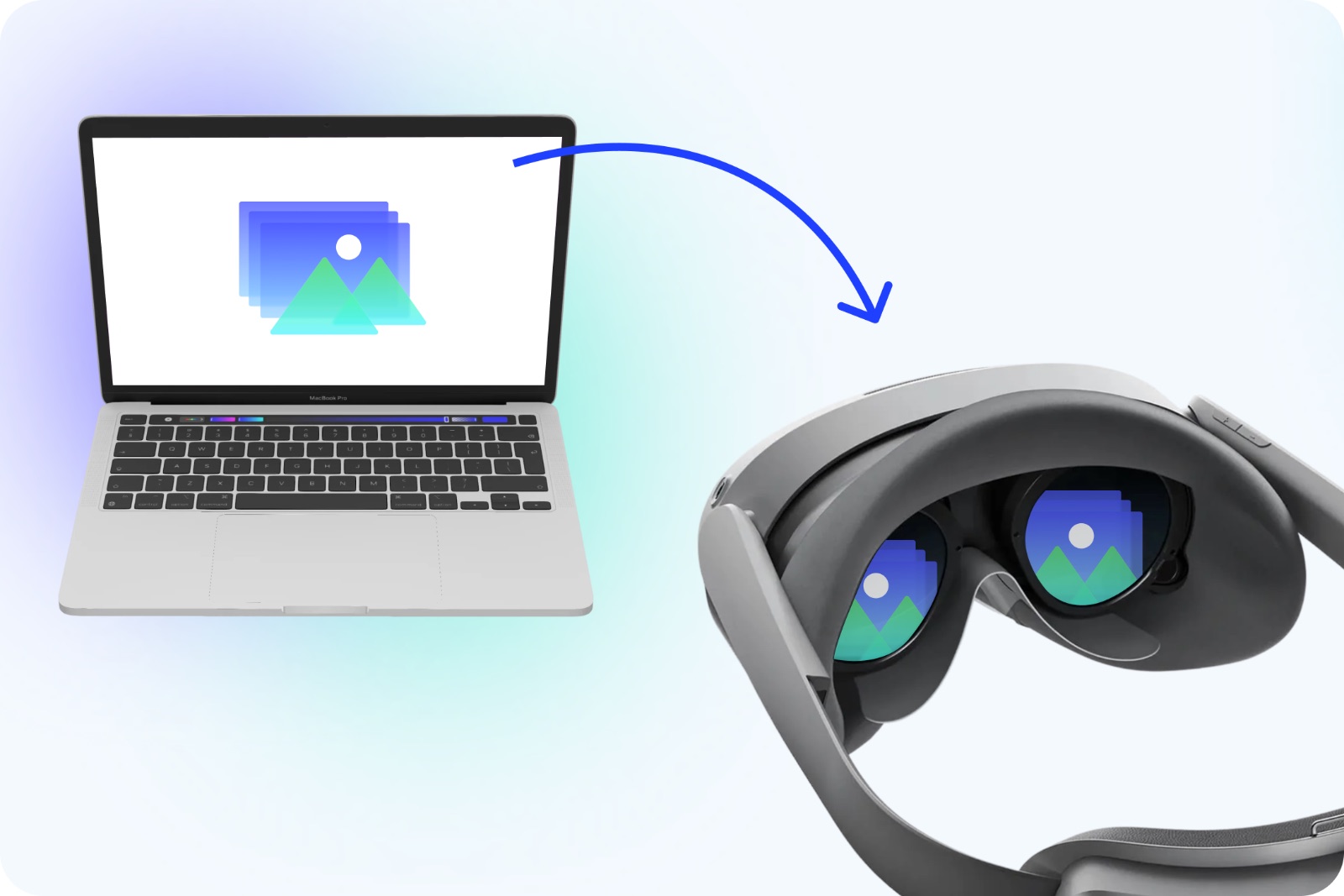
In our previous article we showed how to quickly move images from your phone to a VR headset. But most of the time sketches, references and mural mockups don't live on your phone — they live on your computer, in project folders and exports from graphics editors and AI tools.
So today, a detailed guide: how to upload your sketches from a PC or Mac to the Sketchar app on Meta Quest through a browser, so you can then project them onto walls in VR.
Step 1. Sign in to the Sketchar web app
Open sketchar.io and click the Login button in the top right corner. Or go straight to the direct link: app.sketchar.io/login. If you do not have a Sketchar account click signup.
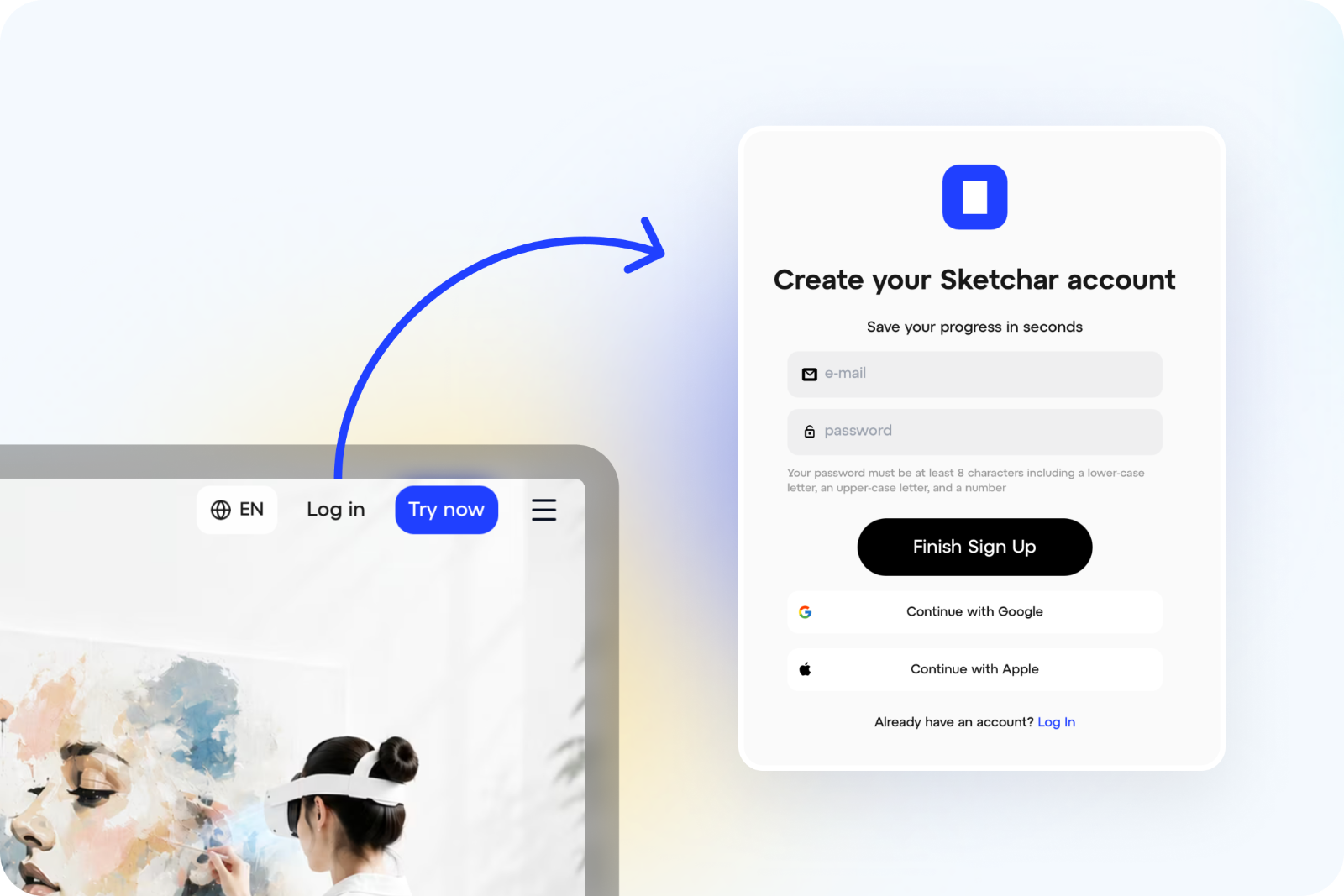
Important: use the same account you're signed in with on Meta Quest — that's how your library syncs between devices.
Step 2. Open the Mural app tab
In the web version, go to the VR upload section: app.sketchar.io/profile/upload-vr.
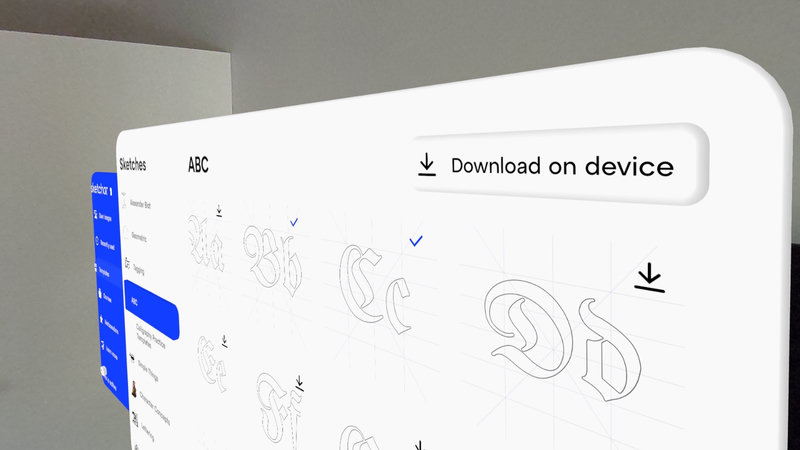
This is your "exchange point" between computer and headset: everything you upload here shows up in the app on Quest.
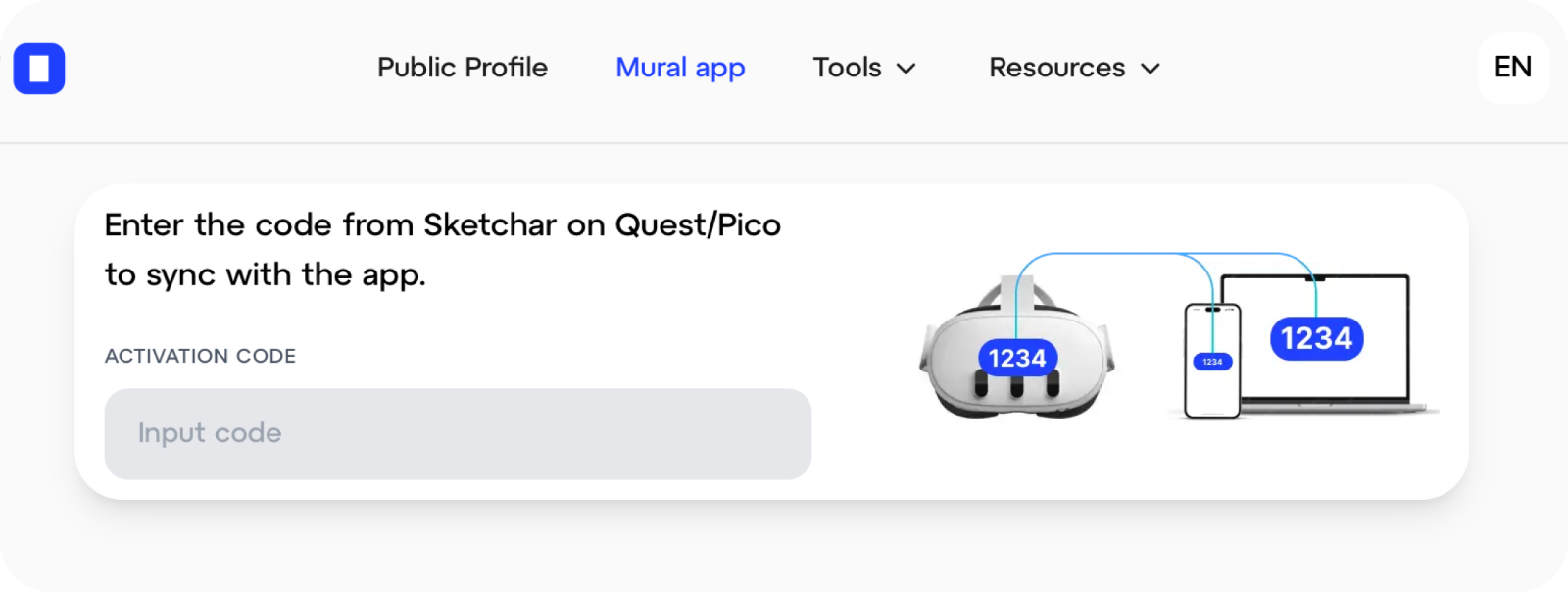
Step 3. Enter the code from the app on Quest
Put on the headset, launch Sketchar and find the sync code. Type it into the browser on your computer — that links the devices together.
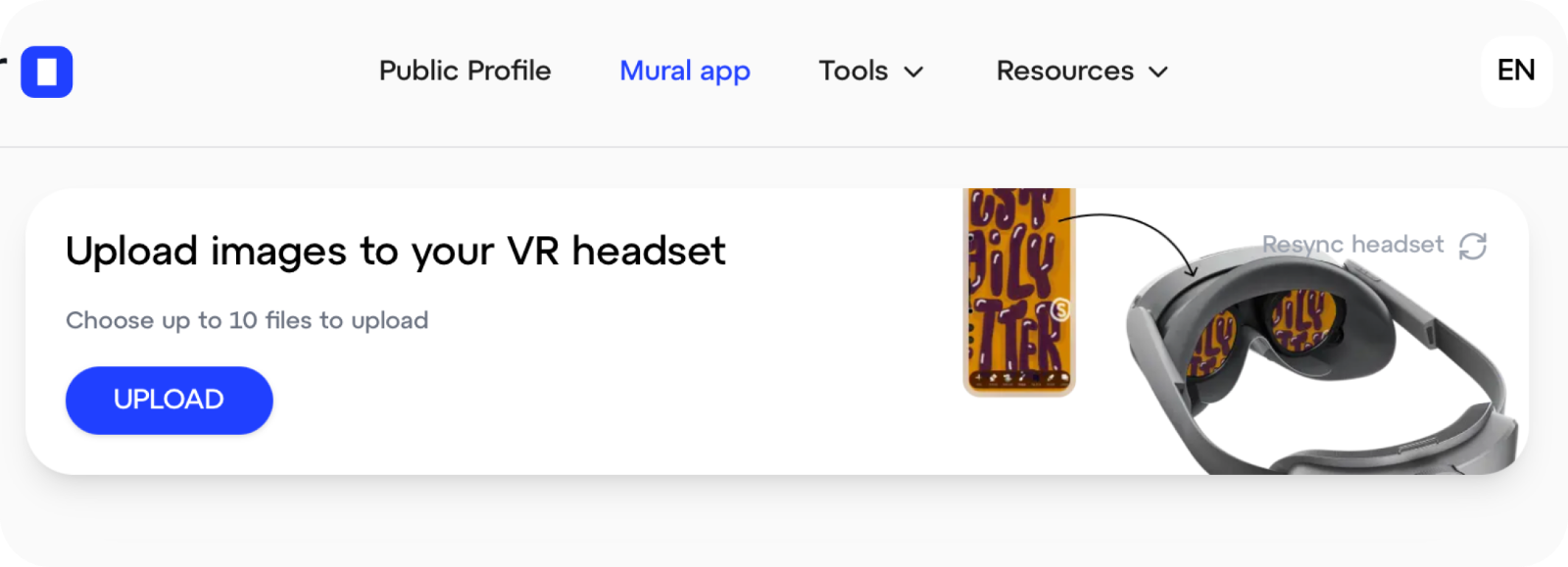
Step 4. Upload your files
That's it. Click the Upload button, pick the images on your computer — and once they're uploaded they'll appear in Sketchar on Meta Quest.
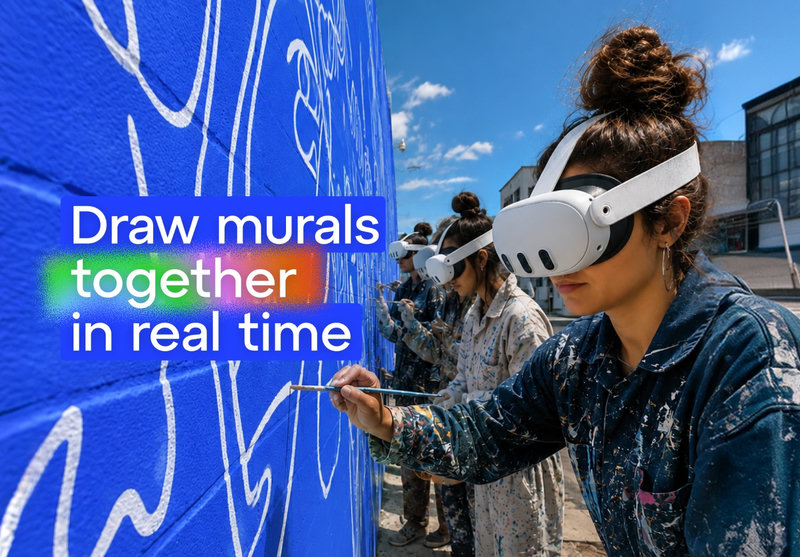
From there it's business as usual: choose a sketch, project it onto a wall in VR and paint your mural at full scale.
A tip about file size
Keep in mind: files larger than 1–2 MB take noticeably longer to upload and display. We recommend preparing sketches under 1 MB — that's plenty for a crisp projection, and everything runs faster and more smoothly.
A few simple rules:
compress PNG and JPG files before uploading;
avoid excessive resolution — huge files don't improve projection quality;
outline sketches with clean lines read better in VR than dense raster images.
Re-syncing
If your headset falls out of sync or you want to connect your library to a new pair of glasses, tap Resync on the banner and repeat the steps above: sign in to the web app → Mural app tab → enter the new code from Quest.
After that all your uploaded sketches will be available in the app again.
If something goes wrong
Can't see the code, files aren't showing up in the headset, or the sync is stuck? Write to us at hello(at)sketchar.io — we'll help you sort it out and suggest how best to prepare sketches for VR murals.
Now your computer, phone and Meta Quest work as one creative system: draw or build a mockup anywhere — and paint the wall in virtual reality.
▋