How to Project Sketches onto Curved Walls, Columns and Corners with Wall View Mode in the Sketchar mobile app
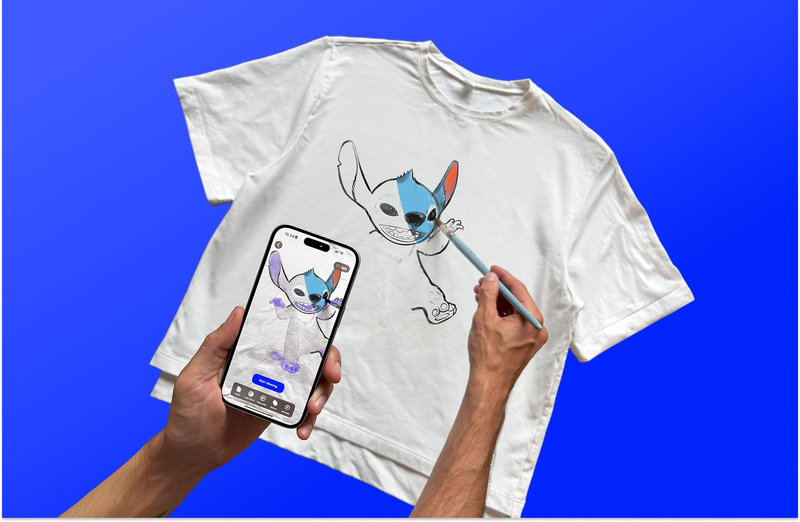
Wall View Mode in the Sketchar mobile app lets you preview your sketch in AR on cylinders, inner and outer corners, even domes — so you can see your mural before you paint a single line.

Flat walls are easy. Real walls are not. Columns, rounded pillars, stairwell corners, curved facades and small domes all bend your artwork in ways that are hard to imagine on paper. Wall View Mode in the Sketchar mobile app lets you place a sketch on those surfaces in augmented reality and see exactly how the mural will wrap before you start painting.
How Wall View Mode works
The feature lives in the Hub section of the Sketchar app on iOS and Android.
Pick an image. Choose your own sketch or any artwork you want to test on the wall.
Move your phone. You'll see a "Move Phone to Start" prompt — walk around the spot a little and pan the camera so the app can detect the planes and understand the space.
Watch it land. Once tracking kicks in, your image appears over the recognized planes and glides along the surfaces as you move.
Tap to lock it. A single tap fixes the artwork in place. In the drop-down menu you can then fine-tune the position down to the millimeter.
Bend it to the surface. The same menu lets you curve the image along the wall, so you can see how your sketch behaves as a full-scale mural on a cylinder, an inner or outer corner, or a hemisphere.


What to expect on a smartphone
Be realistic about the format: Wall View on a phone is mostly a preview tool. Working on a large surface is tricky, because the image can drift as the limited smartphone camera loses track of the space.
A few things that help:
Textured walls track better than perfectly white, smooth ones — brick, concrete, plaster and stucco give the camera something to hold on to.
Good, even lighting reduces drift.
Move slowly and keep some of the surrounding environment in frame.
Re-scan if the image starts sliding: step back, pan again, then re-anchor.
Even with those limits, it's worth experimenting. For sketching a composition, checking proportions, testing where a curve should fall, or showing a client a mockup on site, phone-based AR mural preview is genuinely useful — and free to try.
For big murals: use Meta Quest 3 or 3S
If you're planning a real large-scale mural on a curved wall, we recommend stepping up to a VR headset — Meta Quest 3 or Quest 3S — and installing the Sketchar app there.
Headset tracking is far more stable, you keep both hands free for the spray can or brush, and the artwork stays anchored to the surface while you work. Curved geometry — columns, arches, corners, domes — holds up much better than on a phone. Check the video below to see how Sketchar handles curved surfaces on Quest.

Try it today
Open Sketchar, go to the Hub, choose Wall View Mode and point your phone at the trickiest surface you can find. Bend a sketch around a pillar, wrap a design into a corner, preview a dome — then decide whether it's time to go big in VR.
▋