How to Resume Your VR Mural the Next Day in Sketchar on Meta Quest (Without Losing Placement)
Painting a large mural in Sketchar on Meta Quest usually takes more than one session. Here's how to keep your projected image locked in exactly the same spot when you come back the next day.
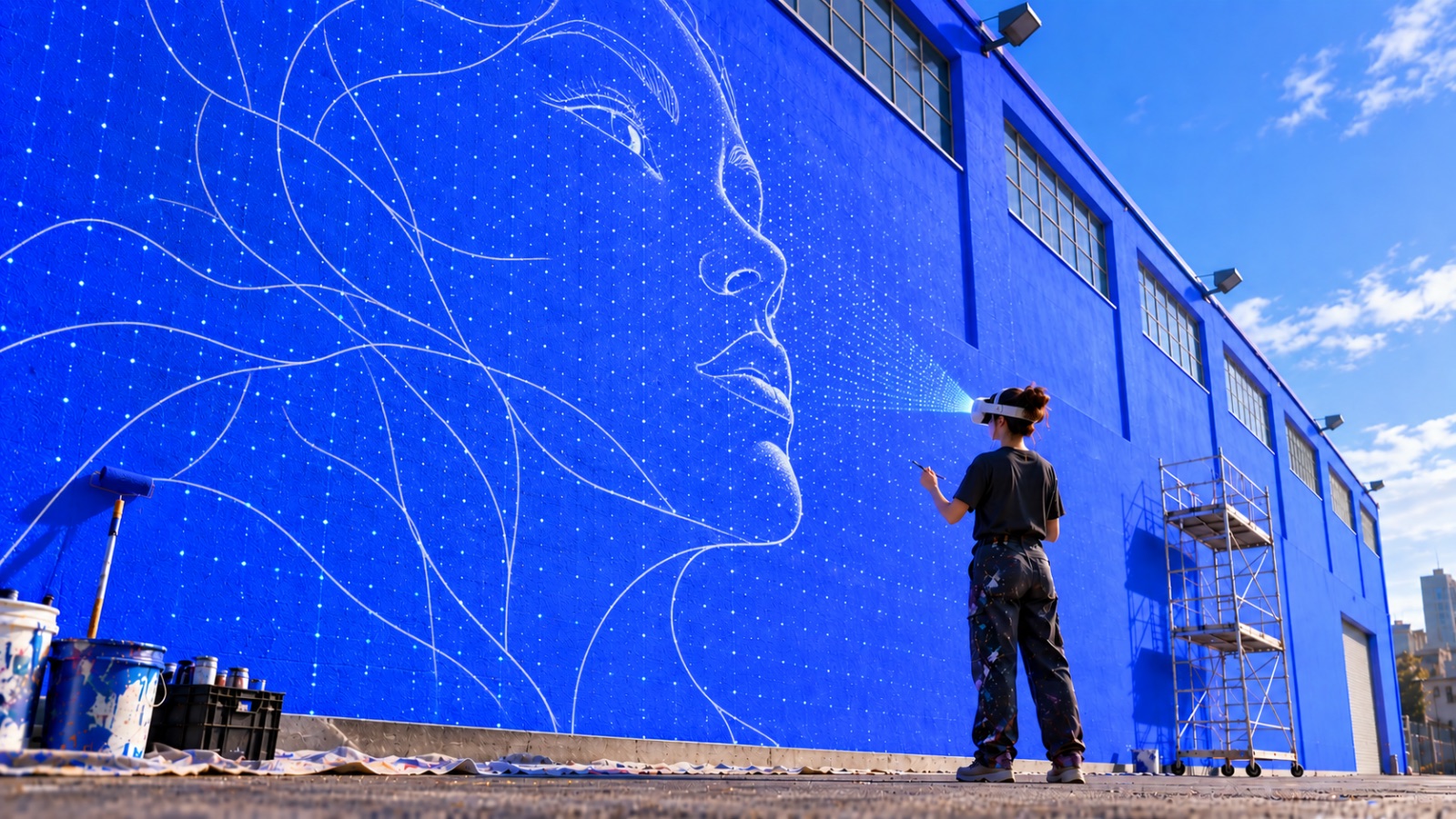
Big walls take time. Most murals painted with Sketchar on Meta Quest 3 are a multi-session job you sketch the outline today, block in color tomorrow, and add details over the weekend.
The question we get most often in support is simple: how do I continue working on my mural the next day so the image stays in exactly the same place?
Here's the short answer, plus a few habits that will save you from re-aligning your artwork from scratch.
The golden rule: let the headset sleep, don't power it off
Sketchar anchors your image to the physical wall while the app is running. That anchor lives in the headset's active session.
So, when you finish for the day:
Do not press any buttons when you take the headset off.
Simply remove it and set it down the Quest will enter sleep mode on its own.
Leave Sketchar open. Don't close the app and don't quit to the home screen.
When you put the headset back on the next day, wake it up and the mural projection should still be aligned to the same spot on the wall.
Keep the Quest 3 charged
This is the part people usually miss. If the headset's battery runs out and it powers off completely, Meta Quest resets all open applications by default and your image placement goes with them.
A few practical tips:
Plug the headset in overnight, or keep it on the charging dock between sessions.
If you're painting outdoors or on a scaffold, bring a power bank.
Check the battery level before you take a long break, not after.
Sleep mode uses very little power, but a headset left at 8% overnight will not make it to the morning.
What to do if the placement is lost anyway
It happens when a reboot, a system update, someone helpfully "turning it off for you." Recovery is straightforward:
Open Sketchar on your Quest and load the same image.
Stand in roughly the same position you used on day one.
Align the projection to the marks already painted on the wall your existing outline is the best reference point you have.
Scale and rotate until the drawn lines and the projected lines overlap.
Because part of the artwork is already on the surface, re-aligning is usually much faster than the initial setup.
Pro tips for multi-day murals
Mark your standing spot on the floor with tape on day one. Same viewpoint = faster alignment.
Paint the main outline first. An outline is the cheapest insurance against losing placement.
Take a photo of the wall with the projection visible through passthrough, so you have a visual reference.
Avoid moving furniture or large objects in the room between sessions it can affect how the headset reads the space.
Summary
To continue a mural in Sketchar on Meta Quest without losing alignment: let the headset sleep instead of shutting it down, keep Sketchar open, and keep the Quest 3 charged. Do that, and your artwork will be waiting exactly where you left it.
▋