How to Use Your Images Offline on Meta Quest
Painting a mural in a spot with no Wi-Fi? Here's how to download your sketches to your Meta Quest headset at home so they're ready to use offline, anywhere.

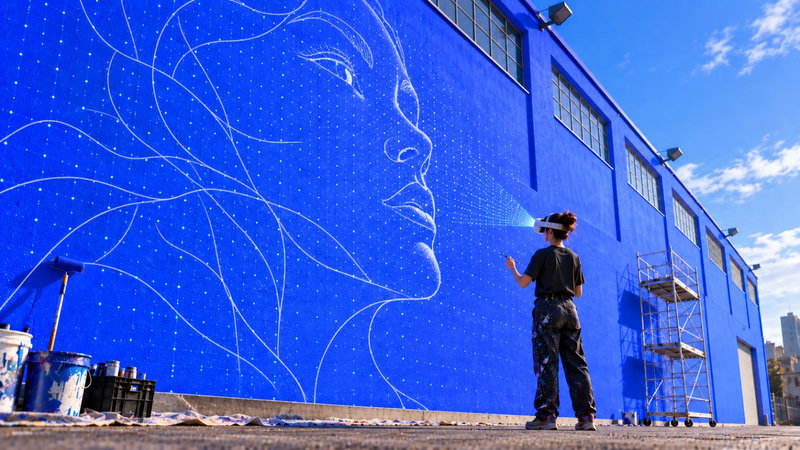
Big walls are rarely next to a strong Wi-Fi router. Warehouses, backyards, basements, garages, community walls on the edge of town — these are exactly the places where mural artists work, and exactly the places where mobile data is weak or missing entirely.
That's a problem, because Sketchar on Meta Quest normally syncs your images from the Sketchar mobile app over the internet. No connection means no sync — and no reference to project onto the wall.
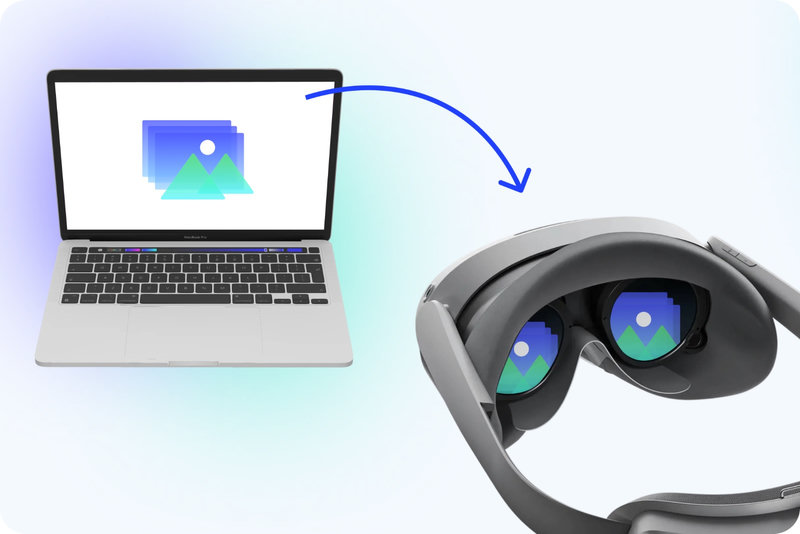
The fix is simple: download your images to the headset in advance, while you still have internet. Once they're stored in the Quest's memory, they open instantly, offline, wherever you are.
Why offline mode matters for VR mural painting
Walls are often located far from any usable network
Public or shared Wi-Fi can drop mid-session and interrupt your work
Large sketches and photos take time to sync over a weak signal
Downloaded images load faster, so you can start tracing your mural right away
If you plan a full painting day on site, preparing your images the night before is the difference between drawing and troubleshooting.
Step-by-step: download images to your Meta Quest
1. Open Sketchar on Quest at home, with internet.
Make sure your headset is connected to Wi-Fi so your library syncs from the Sketchar mobile app and your cloud account. Give it a moment to load all the latest sketches, photos and AI-generated artworks.
2. Hover over the image you want to take with you.
When you point at a thumbnail in your library, a download icon appears on the card.
3. Click the download icon.
The image is saved into your Meta Quest's local memory. From that moment it's available without an internet connection — no sync, no waiting, no signal required.
4. Repeat for every image you might need.
It's worth downloading a few extras: variations of the same design, a backup composition, or a detail shot you may want to zoom into on the wall.

Tips for a smooth on-site session
Prepare the evening before. Charge the headset and download your images in the same routine.
Download more than one option. Clients and walls change their minds; offline extras save the day.
Keep your mobile app as the source. Create or generate artwork in the Sketchar app, sync once at home, then download to Quest.
Check your library offline before leaving. Turn off Wi-Fi at home and open Sketchar on Quest to confirm your images appear as expected.
Draw anywhere, connection or not
Offline downloads turn your Meta Quest into a fully portable mural assistant. Project your reference straight onto the wall in VR, trace confidently at real scale, and stop worrying about bars of signal.
Prepare at home, paint on site — that's all it takes to keep creating with Sketchar wherever the wall happens to be.