A Beginner's Guide to Mural Art with Sketchar
Everything you need to start using Meta Quest for murals — installing the Sketchar mural app, syncing your images, placing sketches on real walls, and painting corners, collages and full compositions in VR.
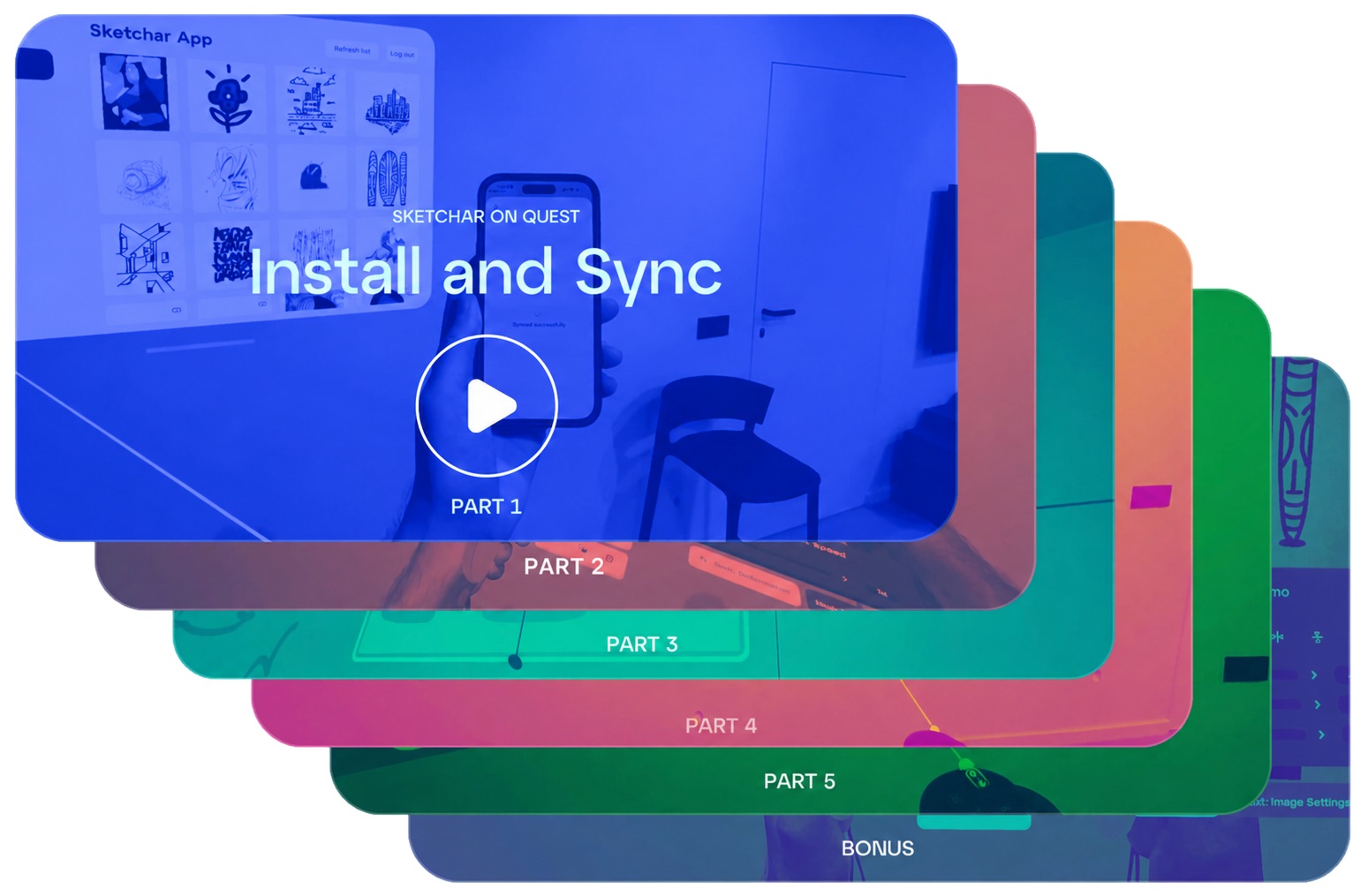
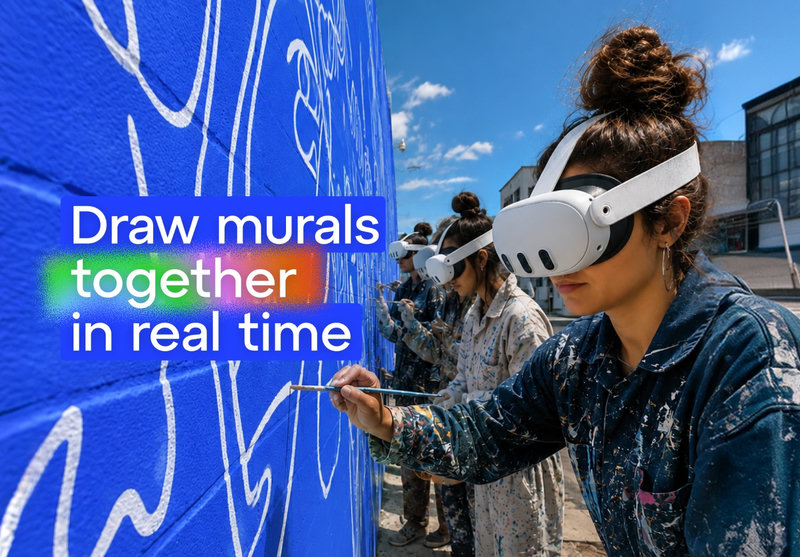
If you paint walls for a living — or want to — Sketchar turns your headset into a projector that never needs darkness. This beginner guide walks you through how to start using Meta Quest for murals: install, sync, place, adjust, and paint.
Sketchar is a VR drawing app built for muralists. It projects your sketch onto a real wall in true scale — no projector, no grid, no chalk lines.
1. Install and sync the Sketchar app
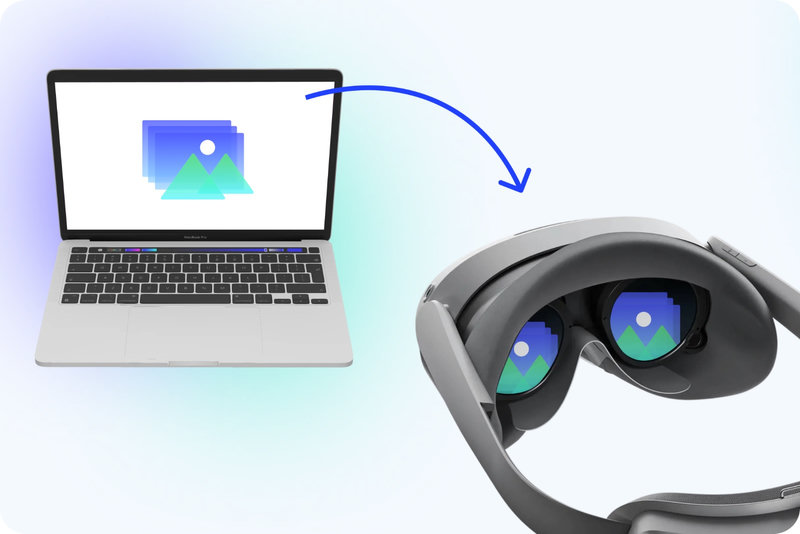
Learn how to install Sketchar on Meta Quest and sync your own images from your phone or Google Drive.
In this video: finding Sketchar in the Meta Horizon Store, generating a sync code, connecting the mobile app, and importing images from Google Drive.
Find Sketchar in the Meta Horizon Store and install it on your headset
Open the Own Images menu and sync with the Sketchar mobile app using your personal code
Connect Google Drive (optional) to pull in larger reference libraries
2. Place and adjust your sketch on the wall
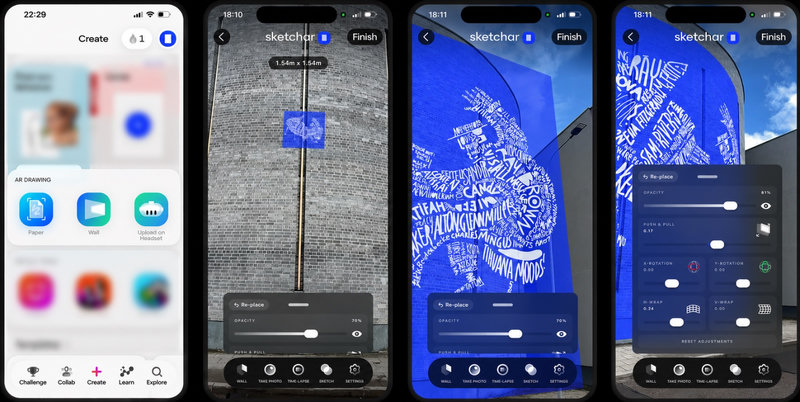
How to place a sketch on a wall and adjust it precisely. Move, scale, rotate, and fine-tune opacity so your reference stays exactly where you need it while you paint.
In this video: grabbing and placing images, scaling with hand gestures, moving along the X, Y and Z axes, rotation controls, and Image Settings — opacity, shading, B/W outlines.
Auto-placing — pick an image from the menu with your index trigger
Manual placing — use the Grab button (middle finger) on the controller
Scale — hold both index triggers and pull apart or together
Move — slide the image across the surface or push it deeper in space
10x Move — hold the left index trigger to move 10 times faster; perfect for large facades when you need to set height quickly
Rotation — change the angle of the image
Image Settings — adjust opacity, invert dark lines into light ones, and remove the white background with one tap
3. Curved surfaces and corners
Painting a wall mural in VR on a corner, column, or cylindrical surface? Curved Surface Mode wraps your sketch around the shape itself, so the projection follows the geometry instead of distorting against it — works for both inner and outer corners.
Select your image
Open Surface Mode
Choose Corner in the extra menu
Set the angle with the left joystick and shift the axis with the right one
Fine-tune with Adjust and Rotation
More details: Draw on curved walls and corners with Surface Mode
4. Collage Mode: plan the whole composition
Plan a full mural composition before you paint. Collage Mode lets you place up to 10 images on the same wall, arrange them, and see the entire layout in scale — on a wall, floor, or even a ceiling.
Select up to 10 images with the index trigger
Place them in any order and apply filters to each one independently
Use the carousel preview at the top of the left controller menu to switch between placed sketches
5. Image Replacement
Swap any placed sketch for another without losing position, scale, or angle — ideal when testing compositions or working through a series of references.
Tap the Image Replacement icon on the left controller
A blue layer appears behind the main menu — replacement mode is active
Any image you pick now replaces the one on the wall, in the same spot
Tap the icon again (or the cross) to exit
Bonus Trick — Switch Modes with the X and A Buttons
Once you know each mode, it's time to switch between them on the fly — without looking down at your controllers.
Start your first mural
Sketchar is the first and most advanced mural app for Meta Quest — built by muralists, for muralists. It removes the sketching grid, the projector and the guesswork, so you spend your time painting instead of measuring. Install it, sync one image, and put your first VR art projection on a real wall today.
▋