How to trace a drawing with your phone camera – AR tracing without a projector (2026)
Trace with phone camera: Six steps to trace a sketch onto paper through your phone camera – no projector or lightbox – and the light, paper and opacity mistakes that ruin a trace.
The short answer
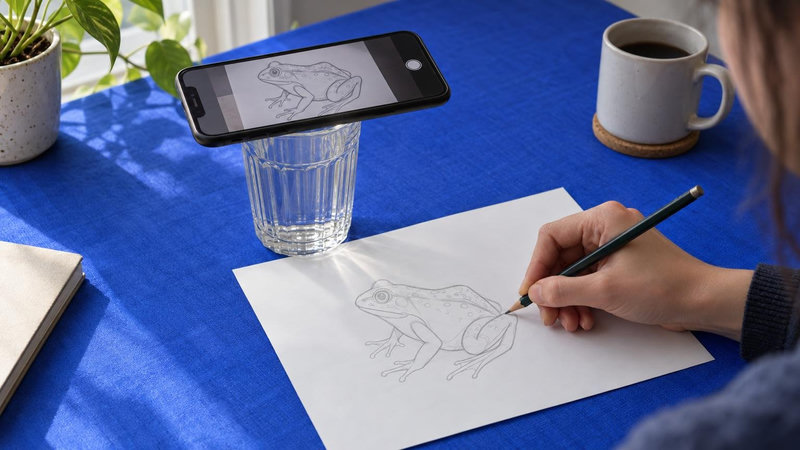
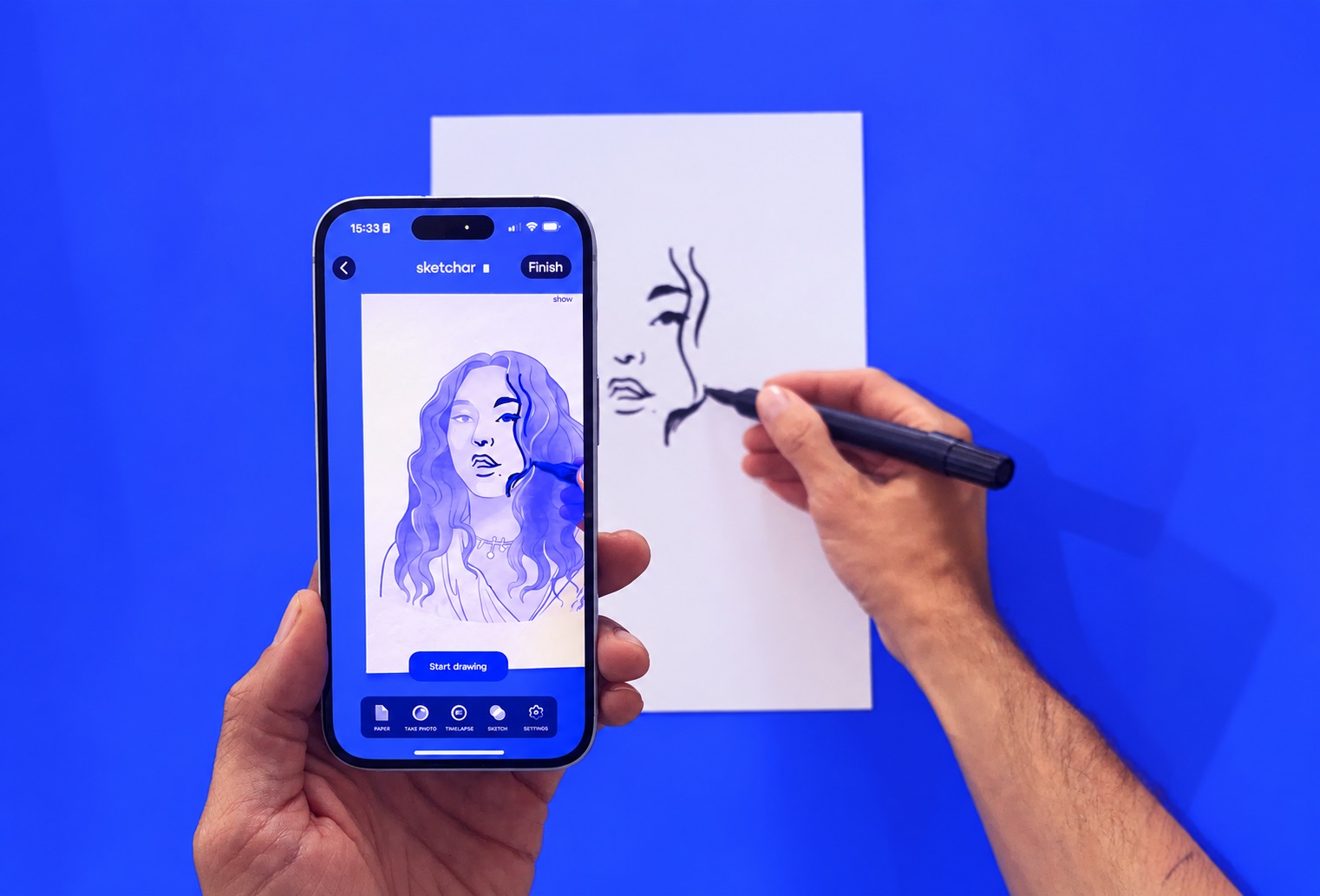
To trace a drawing with your phone camera, open an AR drawing app, load the image you want to copy, and point the camera at a blank sheet. The app lays the image over the paper on your screen, half-transparent, and you follow its lines with a pencil while looking through the phone. No projector, no lightbox, no printing – the camera does the projecting.
That is AR drawing in one paragraph. If you want the longer version – what AR drawing is and how it works – the pillar page covers the method, its history since 2016 and the apps that do it. This article stays with one task: getting a sketch from your phone onto paper.
What you need
A phone or tablet with a camera
An AR drawing app – Sketchar is free to download; other apps work the same way with one difference, covered in step 4
The image you want to trace: a template, a lesson or your own photo
Paper – textured paper fits better than smooth or glossy
A pencil or a marker
Good light – near a window is the best option
Optional: a stand or a tripod, if you want both hands free
Step by step
Pick the image. Choose what you will trace. In Sketchar, 1,000+ templates and step-by-step lessons are free; projecting your own photo is a PRO feature ($5/month or $49/year). A line drawing with clear outlines is easier for a first attempt than a photo with soft shading.
Set the opacity. Lower the overlay until you can see both the lines of the sketch and the tip of your pencil underneath. If the image is too solid, you cannot see what you are drawing. If it is too faint, you lose the lines. Somewhere in the middle is right, and it changes with your light.
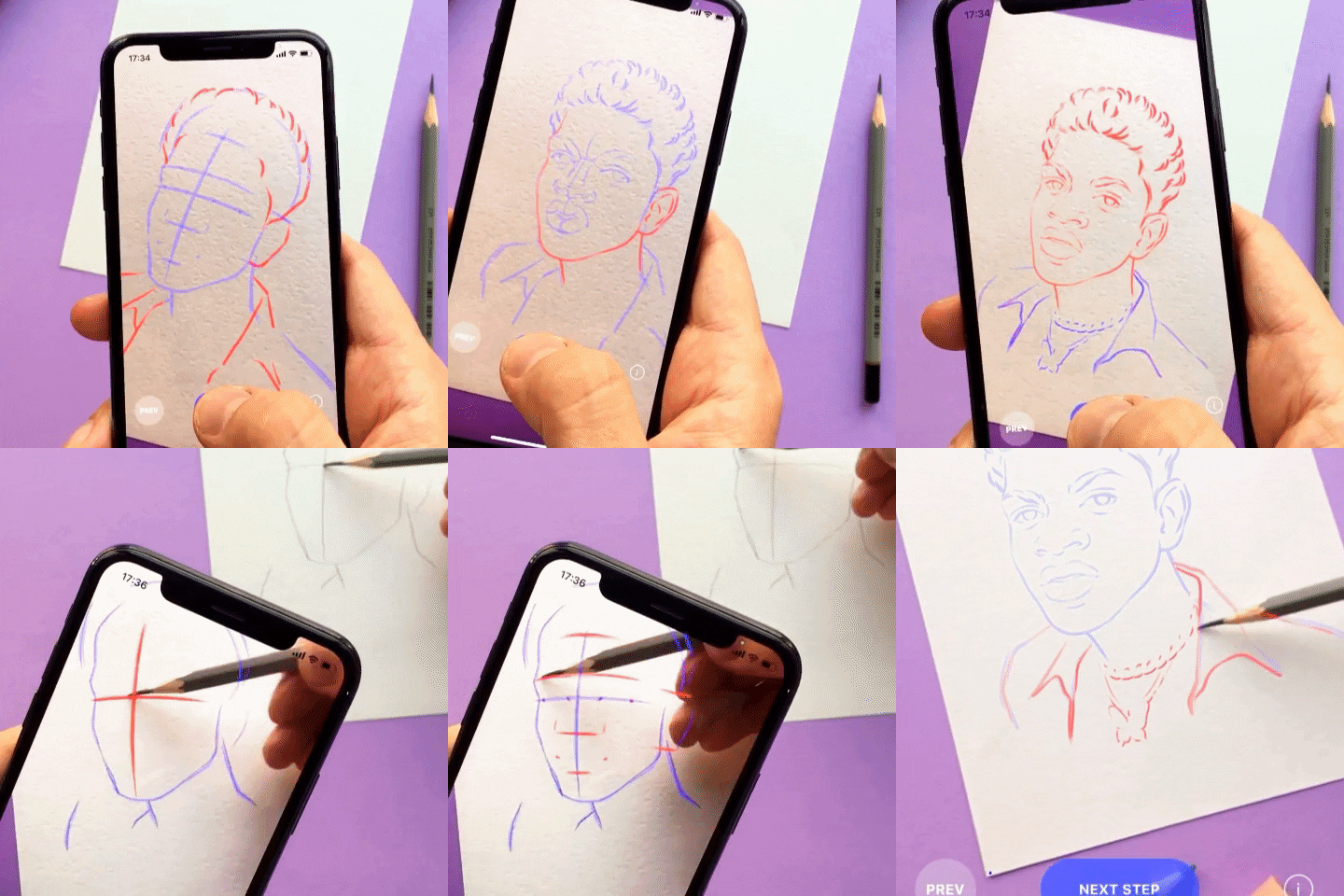
Point the camera at the paper. Hold the phone above the sheet so the whole drawing area is in view. Wait for the app to recognize the paper. The sketch should appear sitting on the page, not floating in front of it.
Hold or prop the phone. Here the apps differ. Sketchar's own tracking anchors the sketch to the paper and follows the phone, so you can hold it in one hand and draw with the other; a stand or tripod is optional. Most other AR drawing apps need the phone fixed above the sheet, so with those you will need a stand and should not move it once the image is placed.
Trace. Look through the screen and follow the lines with your other hand. Lift the pencil, glance at the sheet, keep going. Start with the large shapes, then the details. Do not press hard – these are guide lines you will draw over or erase later.
Check. Move the phone away and look at the paper with your own eyes. Compare it with the source. If a line drifted, put the phone back, find the same spot in the overlay and correct it. The first sheet takes about fifteen minutes.
Mistakes that ruin the trace
Bad light. The camera needs to see the paper to hold the image on it. In a dim room the picture gets noisy and the overlay jitters or slides. Sit near a window or turn on a lamp that lights the sheet, not the screen.
Glossy paper. Shiny paper throws reflections and gives the camera less texture to lock onto. Textured paper fits better. If all you have is smooth paper, avoid direct light bouncing off it into the lens.
Moving the sheet. The sketch is anchored to the paper as the camera first saw it. Slide the sheet and the image stays where the paper was. Tape the corners down or hold the paper with your free hand on an app that lets you hold the phone.
Too-dark overlay. The most common beginner error. A near-opaque overlay looks precise on the screen but hides your pencil, so you draw blind. Bring the opacity down until you see the pencil tip and the line you are following at the same time.
Skipping the check. Tracing through a screen feels accurate while you do it. Always look at the paper directly before you commit with ink or paint.
Phone camera vs projector vs lightbox
A projector throws the image onto the surface itself, so your eyes and hands work directly on the paper. It works on walls and large canvases. The price is a dark room, a power outlet, a fixed position, and your own shadow falling across the lines whenever you lean in.
A lightbox shines through the paper from below so you can see a printed reference underneath. It is precise and needs no tracking, but you must print the image at the right size first, and it only works with thin paper on a flat table – nothing on a wall, a canvas or a T-shirt.
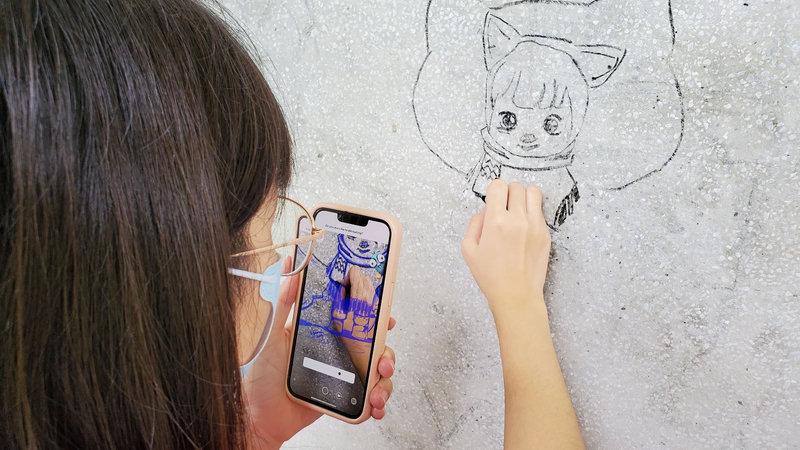
The phone camera needs no printout, no darkness and no extra hardware. It works on paper, walls, canvas and clothes, and you can resize the image on the fly. Its weakness is that you look at a screen instead of the paper, which is why the opacity setting and the final check matter. For walls, Sketchar has a Mural View, and its Meta Quest app handles large murals hands-free.

FAQ
Does it work without an app?
Not well. You can open a picture on your phone and glance between it and the paper, but the phone will not overlay the image on the sheet or hold it in place. That overlay and tracking is what an AR drawing app adds.
Do I need a stand?
With Sketchar, no – the tracking follows the phone, so you hold it in one hand and draw with the other. With most other AR drawing apps, yes, the phone has to stay fixed above the sheet.
Does it work on iPad?
Yes. Sketchar runs on iOS and Android phones and tablets. A tablet gives you a larger view of the overlay; the tradeoff is weight if you hold it, so a stand is more useful here.
Is tracing cheating?
No. Artists have used grids, camera obscuras and projectors for centuries. Tracing teaches proportion and line control while you draw. It becomes a problem only if you present a traced copy of someone else's work as your own.
If you want to try the method, get Sketchar – free to download, with the templates and lessons free and your own photos on PRO.
▋