Selfie into Lesson: turn a photo into a step-by-step portrait drawing lesson
A new Sketchar tool turns a selfie or any photo of a person into a drawing lesson. Pick a style, preview the steps, then draw the portrait on the canvas or on paper with AR.
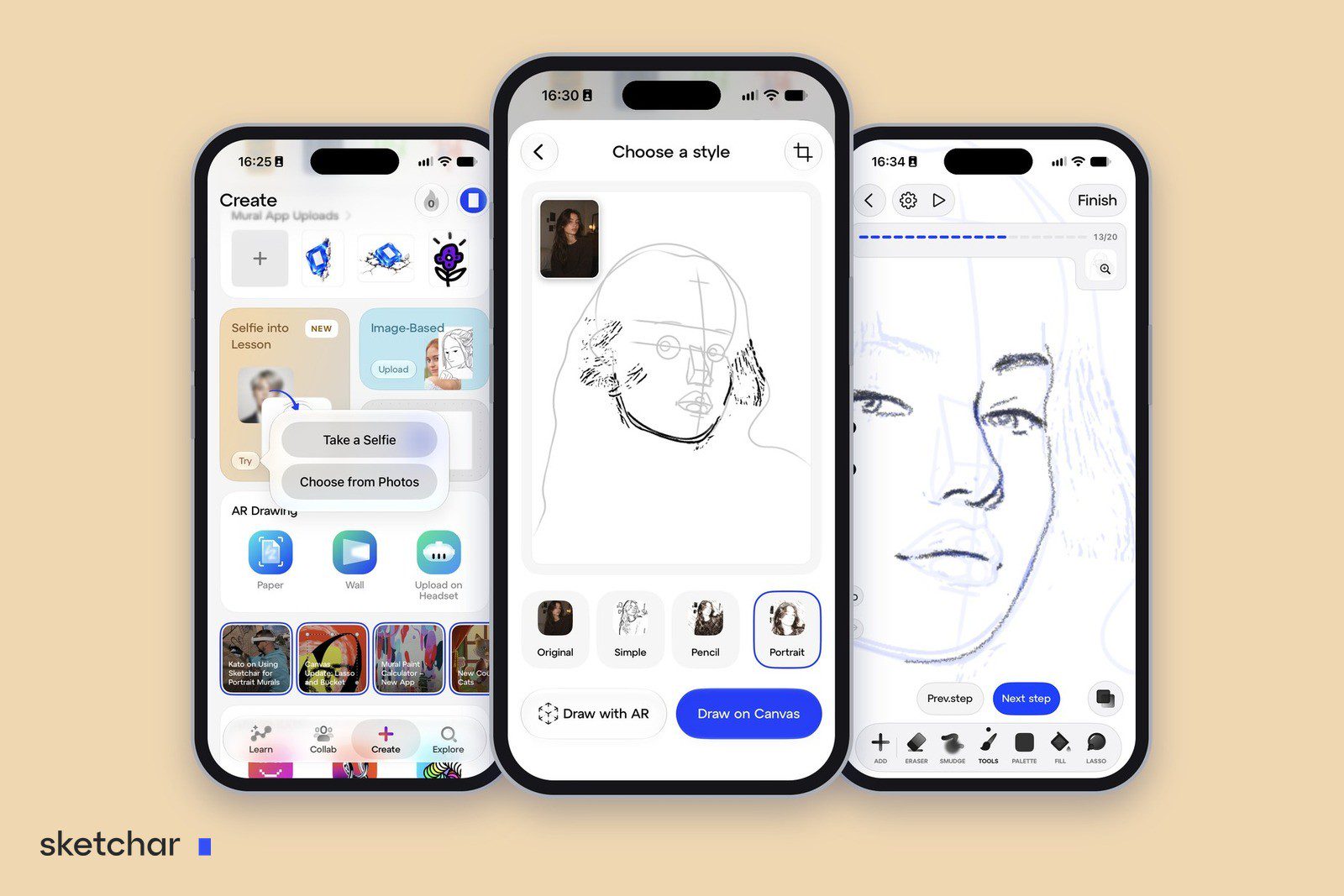
Short answer: Selfie into Lesson is a new tool in the Sketchar app that turns a photo of a person into a step-by-step drawing lesson. Take a selfie or pick a photo from your gallery, choose a sketch style, watch a preview of how the lesson builds, then draw the portrait on the Sketchar canvas or on paper with AR. The app shows the order of the lines. The drawing is yours.
What Selfie into Lesson does
Most drawing lessons teach someone else's subject: an apple, a cat, a face from a stock library. You follow along, finish, and forget it. A portrait of a person you know is different. You can tell at once whether the likeness is there, and you want it to be.
Selfie into Lesson builds the lesson around your photo. It finds the face, turns the photo into a sketch in the style you choose, and splits that sketch into steps: the shape of the head first, then the guide lines for the eyes, nose and mouth, then the features, the hair and the shading. You draw each step yourself and move on when you are ready.
Which photo to use
The one requirement is a person in the photo. The tool is built around a human face, so a landscape or a still life will not work here. For those, use the Image-Based card on the same screen.
A photo gives a better lesson when:
there is one person in it, and the face takes up a good part of the frame;
the face is evenly lit, with no hard shadow across the eyes;
hair, a hand or sunglasses do not cover the features;
the head is turned slightly rather than straight on, which makes the portrait livelier and the proportions easier to read.
Step 1 – Open Create and tap Selfie into Lesson
Open the Sketchar app and go to the Create tab. The Selfie into Lesson card is marked NEW. Tap Try.
Step 2 – Take a selfie or choose a photo
A small menu offers two options. Take a Selfie opens the front camera. Choose from Photos opens your gallery, so the lesson does not have to be about you: any photo with a person in it will do.
Step 3 – Crop the photo and choose a style
The next screen is called Choose a style. Use the crop button in the top corner to frame the face, then pick one of four options under the picture:
Original keeps the photo itself as your reference.
Simple turns it into a clean line sketch.
Pencil gives a shaded pencil drawing with tone and texture.
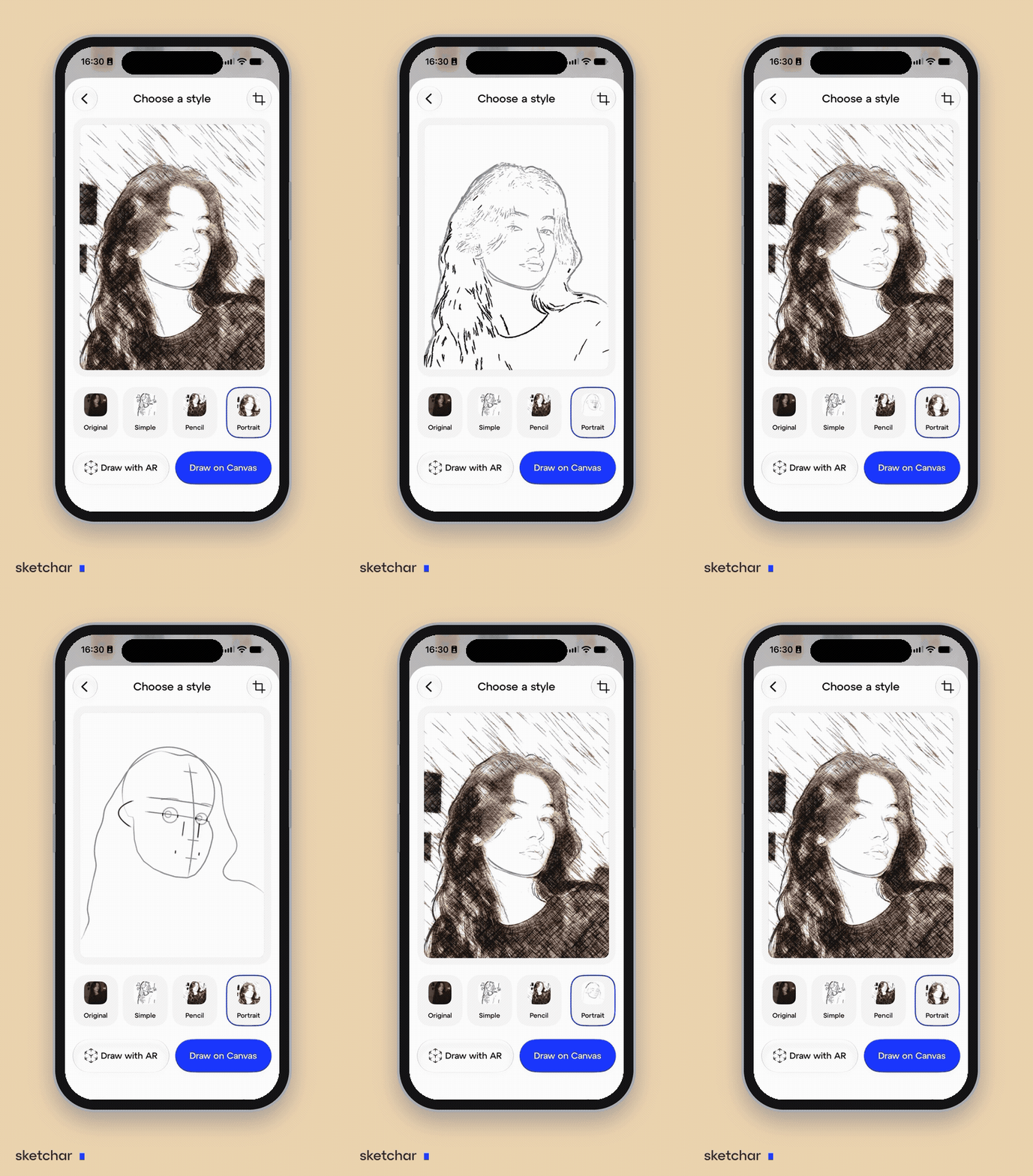
Portrait builds a classic construction lesson: the oval of the head, the centre line and the eye line, the placement of the eyes, nose and mouth, and only then the hair and the shading.
Portrait is the one to choose if you want to understand how a face is put together, not only to copy its outline.
Step 4 – Watch the preview
The same screen shows a preview of how the lesson will go. In the Portrait style you see the head appear as a few construction lines, then the features, then the full shaded drawing. Switch between styles and compare before you commit. Nothing is drawn yet, so this is the moment to change the photo or the crop.
Nobody forgets the first face they drew that looked like someone. Make that someone a person you know.
Step 5 – Choose where to draw: Canvas or AR
Two buttons at the bottom decide where the lesson happens.
Draw on Canvas opens the lesson in Sketchar's own drawing tool. You draw with a finger or a stylus, with brushes, an eraser, smudge, layers and undo.
Draw with AR takes the lesson to real paper. The phone camera shows the sketch on your sheet, and you draw it with a real pencil. The setup is the same as for any AR drawing, and it is described in How to trace a drawing with your phone camera.
Pick Canvas if you want to draw right now, wherever you are. Pick AR if you want a portrait you can hand to someone.
Step 6 – Follow the lesson step by step
On the canvas the lesson runs as a row of steps with a counter at the top. The portrait in our example took 20. The lines of the current step appear in pale blue under your own strokes. Draw over them, tap Next step, and go back with Prev. step if you want to redo something. When the last step is done, tap Finish and the drawing is saved to your projects.
Who to draw
The lesson is only as interesting as the face in it, so choose one you care about.
Yourself. A self-portrait is the oldest exercise in drawing, and a selfie is the easiest reference to get. The result makes a good profile picture.
Friends and family. A hand-drawn portrait is a present nobody else will give them. With AR it ends up on real paper, ready to frame.
Someone you admire. A musician, an actor, an athlete, the character you have wanted to draw for years. A photo of a recognisable face turns into fan art you made yourself.
The same person, several times. Run one photo through Simple, Pencil and Portrait and you will see three different ways to look at the same face.
Is this still learning to draw?
Yes, and more so than plain tracing. Copying an outline teaches your hand. A lesson that starts with the oval of the head and the eye line teaches your eye where things sit on a face, which is what carries over to the next portrait you draw without any help. We wrote more about that in Is AR drawing cheating?.
If you only need to transfer a picture to paper and do not want a lesson, the free browser overlay at sketchar.io/try does that without installing anything.
FAQ
What is Selfie into Lesson? A tool in the Sketchar app that turns a photo of a person into a step-by-step drawing lesson, which you then draw on the canvas or on paper with AR.
Can I use a photo from my gallery instead of a selfie? Yes. Tap Choose from Photos and pick any photo with a person in it.
Does the photo have to show a person? Yes. The lesson is built around a face. For other pictures, use the Image-Based card on the Create screen.
Can I turn a photo of a friend or a favourite character into a drawing lesson? Yes. Any photo where the face is clearly visible works, whether it is a friend, a relative or someone famous.
Do I need to know how to draw? No. Each step adds a few lines to the ones you already have, starting with the simplest shapes.
Can I draw the portrait on paper? Yes. Choose Draw with AR, put a sheet of paper in front of the phone camera and draw with a pencil.
Where do I find Selfie into Lesson? On the Create tab of the Sketchar app, on the card marked NEW. If you do not see it, update the app to the latest version.
Turn your next selfie into a drawing lesson. Open Create, tap Selfie into Lesson and draw a face you know. Get Sketchar
▋